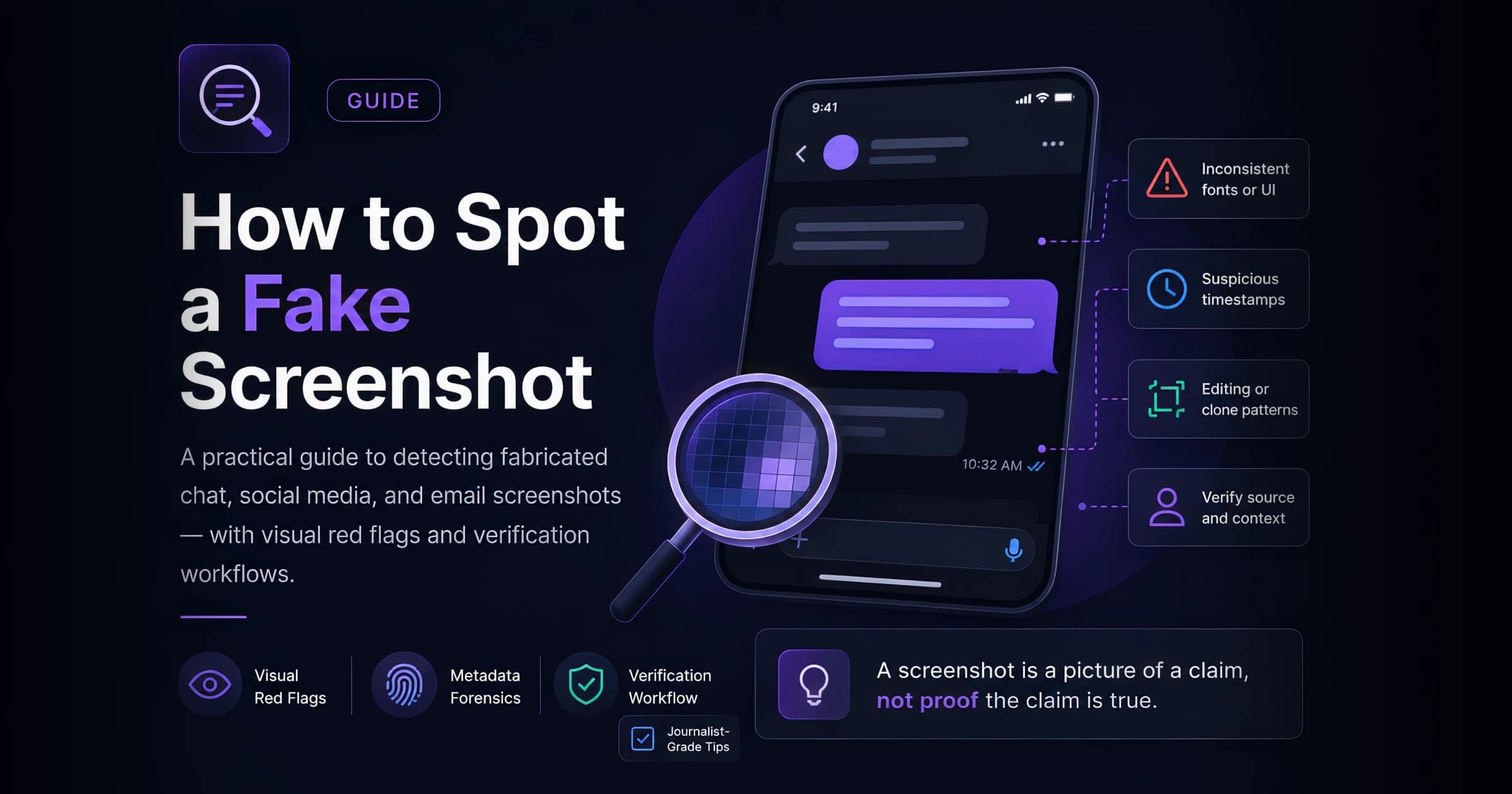
How to Spot a Fake Screenshot (and Verify What You See Online)
A practical guide to detecting fabricated chat, social media, and email screenshots. Learn visual red flags, metadata forensics, and verification workflows used by journalists and fact-checkers — plus responsible-use guidelines for mockup tools.
Quick takeaway
A screenshot is a picture of a claim — not proof it is true. Verify with source checks, metadata forensics, and platform search before treating any image as evidence.
Why Fake Screenshots Spread So Fast
Screenshots feel like evidence — but they are trivially easy to fabricate with modern mockup tools.
Screenshots occupy a unique position in online discourse: they look like primary evidence while requiring almost no technical skill to produce. A fabricated chat thread, tweet, or email can be created in minutes and shared before anyone verifies the source.
The Reuters Institute Digital News Report has repeatedly found that visual formats — including screenshots and memes — travel faster than text-only claims because they are easy to consume and hard to contextualize in a feed scroll.
Creation time
< 5 min
Modern mockup tools produce platform-accurate output instantly
Verification time
15–60 min
Journalist-grade source checks take substantially longer
Asymmetry
High
Fabrication is cheap; debunking is expensive — a classic misinformation dynamic
Visual Red Flags to Check First
Start with a 30-second visual scan before diving into metadata or source verification.
Platform UI consistency
Status bar matches the claimed device and OS version
Battery icon style, notch shape, carrier text, and time format change between iOS/Android versions
Font weights and bubble shapes match current platform design
iMessage blue bubbles, Slack sidebar width, and Twitter/X post layout update with platform redesigns
Timestamps are plausible and internally consistent
Check AM/PM format, time zone hints, and whether message order makes sense
Profile photos and usernames resolve to real accounts
Search the handle on the platform — does the avatar match?
Compression artifacts are uniform
Screenshots-of-screenshots or edited regions often show different JPEG noise patterns
| Signal | Likely authentic | Likely fabricated |
|---|---|---|
| Status bar | Matches device model and current OS | Generic or outdated UI chrome |
| Text rendering | Crisp platform-native fonts | Slightly wrong kerning or weight |
| Context | Full thread with replies visible | Cropped to hide surrounding messages |
| Provenance | Shared with link to original post | Image-only share with no source URL |
Metadata and Forensic Checks
Image file metadata can reveal editing software, creation dates, and other clues.
- 1
Extract EXIF and file metadata
Upload the image to a metadata viewer (e.g. Jeffrey's Image Metadata Viewer or ExifTool) and check for Software, DateTimeOriginal, and GPS fields. Screenshots from phones typically lack camera EXIF; presence of Photoshop or Canva signatures is a yellow flag.
Tip: Screenshots shared through messaging apps often strip metadata — absence of EXIF is not proof of authenticity.
- 2
Run reverse image search
Use Google Lens, TinEye, or Bing Visual Search to find earlier appearances of the same image. If the screenshot appeared in a different context months earlier, the current narrative may be recycled or misattributed.
- 3
Check for editing artifacts
Zoom to 200–400% and look for clone-stamp patterns, mismatched compression blocks, or text that sits on a different pixel grid than the surrounding UI. Error Level Analysis (ELA) tools can highlight re-compressed regions.
“Never assume a screenshot is authentic just because it looks convincing. Always try to find the original source.”
A Journalist-Grade Verification Workflow
The five-step process fact-checkers use before treating a screenshot as evidence.
- 1
Search the exact text on the platform
Copy distinctive phrases from the screenshot and search them directly on X/Twitter, Facebook, or the relevant platform. GIJN recommends this as the first step for tweet screenshots because it bypasses the image entirely.
- 2
Check the Wayback Machine and archives
If the content was on a public webpage, search web archives for cached versions. Archive.today and the Internet Archive can confirm whether a page existed at a claimed date.
- 3
Contact the alleged author
For high-stakes claims, reach out to the person shown in the screenshot through verified channels. Many viral fakes are debunked simply by the alleged author denying authorship.
- 4
Consult established fact-checkers
Search whether Snopes, PolitiFact, AFP Fact Check, or Reuters Fact Check has already investigated the claim. Duplicate your effort only if no credible assessment exists.
- 5
Document your verification trail
If you publish a debunk or confirmation, save screenshots of your search results, archive links, and timestamps. Bellingcat's online investigation methodology emphasizes reproducible evidence chains.
“The goal is not to prove a negative — it is to establish whether positive evidence exists for the claim.”
Key Takeaways
- Search the text, not just the image
- Verify against the original platform or archive
- High-quality mockups require source-level verification
- When stakes are high, contact the alleged author directly
Responsible Use of Mockup Tools
AdSights builds mockup generators for marketing and education — here is how to use them ethically.
Mockup generators serve legitimate purposes: product demos, creative testing, UX presentations, and classroom instruction. The same technology that enables marketing workflows can be misused for deception.
Responsible use means:
- Label mockups clearly as demonstrations or simulations
- Never impersonate real individuals without consent
- Do not present generated screenshots as evidence in disputes, journalism, or legal contexts
- Use watermarks or context labels when sharing in public channels
Free Tool
Fake Chat Generator
Create labeled chat mockups for marketing demos and creative testing — always mark outputs as simulations.
Free Tool
Email Mockup Generator
Build Gmail or Outlook thread mockups for presentations. Never present outputs as real correspondence.
Frequently Asked Questions
Related Tools & Guides

Fake Chat Generator
Create realistic Slack, iMessage, WhatsApp, Messenger, Discord, or brand-neutral chat mockups for launch recaps, testimonials, customer stories, and social proof. Use it as a fake chat maker for pixel-perfect conversations or a fake text message generator for phone-style screenshots — no design tools or Photoshop required. Edit names, avatars, timestamps, delivery states, and message content to match your brand voice, then download a retina-density PNG with one click — free, with no watermark and no signup.
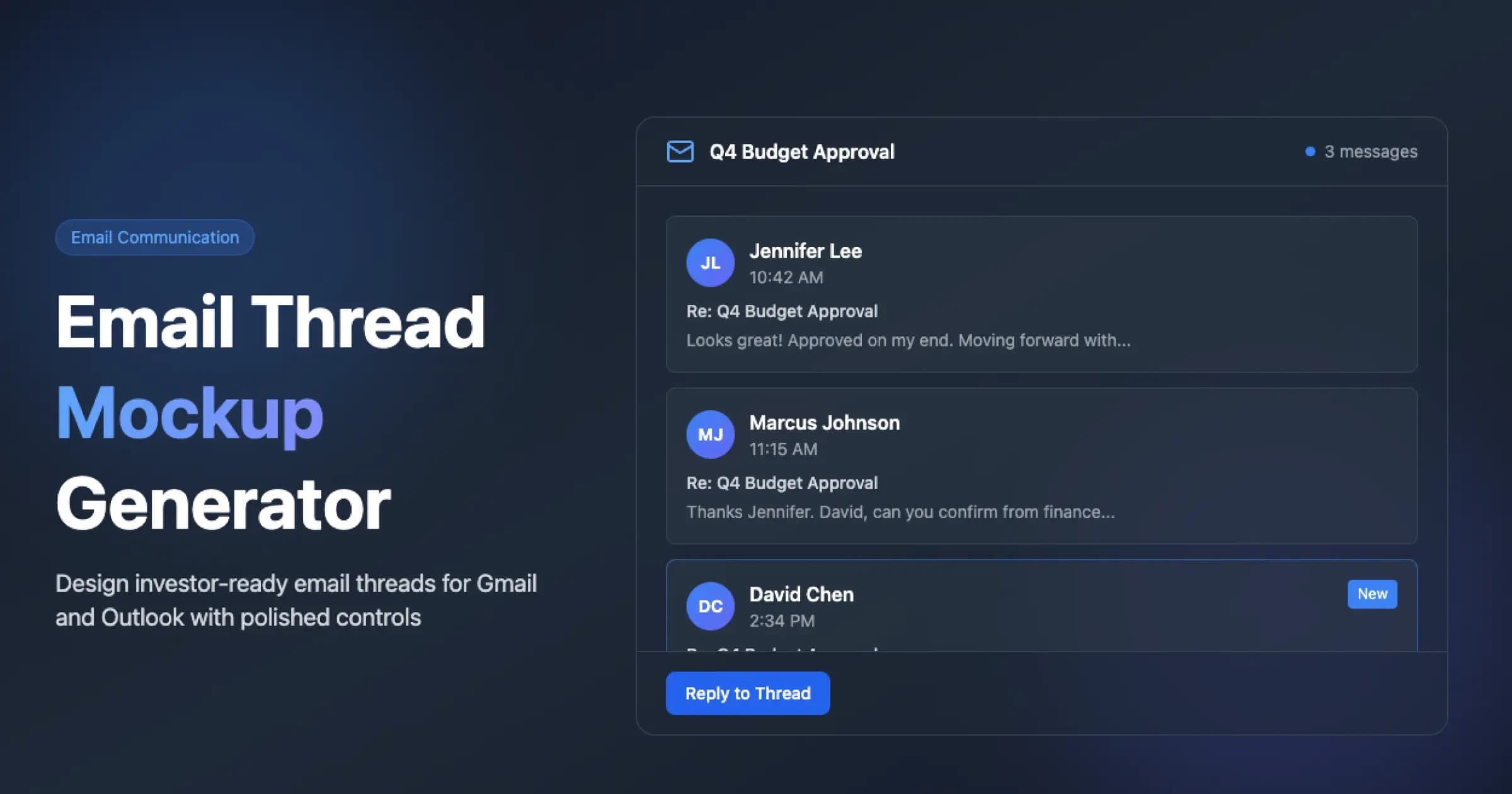
Email Mockup Generator
Create realistic Gmail and Outlook email threads for decks and UI demos. Customize avatars, timestamps, senders, and message bodies, then export a PNG — free, no signup.
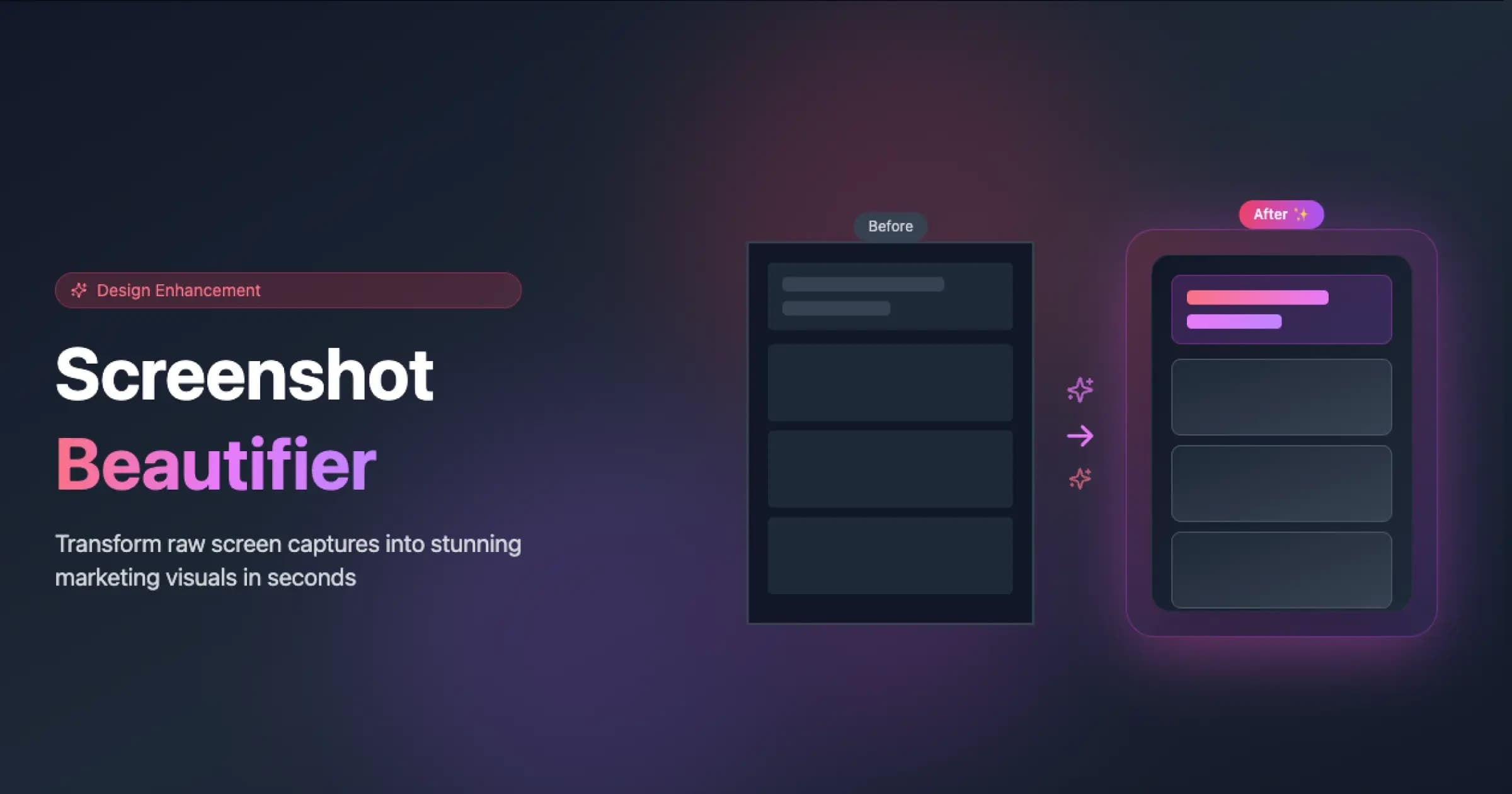
Screenshot Beautifier
Enhance and transform raw screenshots into polished, professional marketing visuals with rounded corners, drop shadows, and elegant backgrounds. Perfect for marketers, product teams, educators, and anyone who needs beautiful screenshots for presentations, social proof, or documentation—no design skills required.
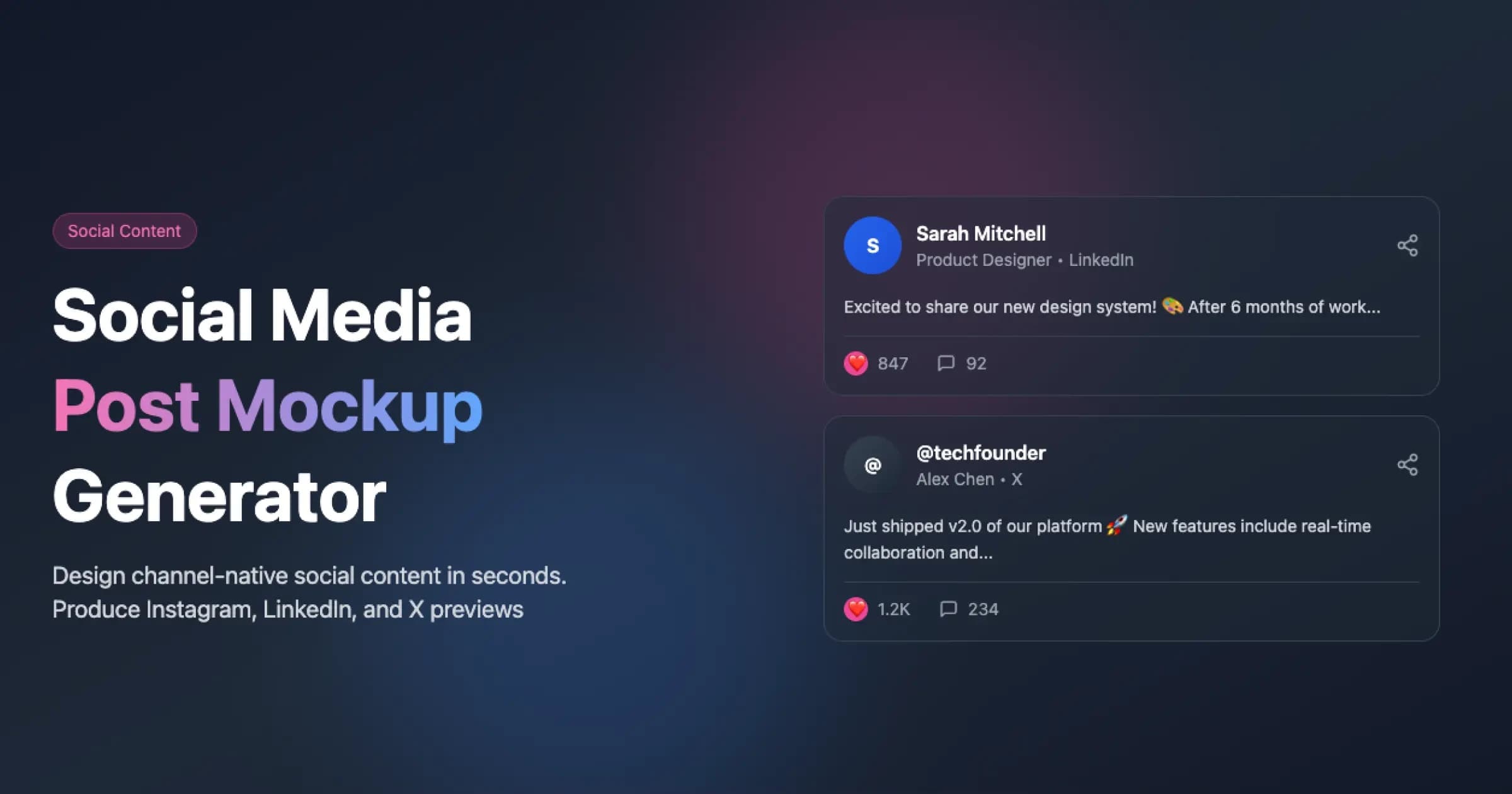
Social Media Post Mockup Generator
Create realistic, export-ready social media post mockups for Instagram (feed + Reels), Facebook, TikTok, YouTube, LinkedIn, and X (Twitter). Perfect for marketing presentations, client approvals, campaign previews, and portfolio showcases. Customize engagement metrics, branding, and layouts to match your brand identity and boost social proof.

The Creative Testing Framework: How to Run Rigorous Ad Tests
A complete framework for designing, running, and interpreting paid social creative tests — from hypothesis formation through statistical significance, with sample-size guidance and common pitfalls to avoid.
